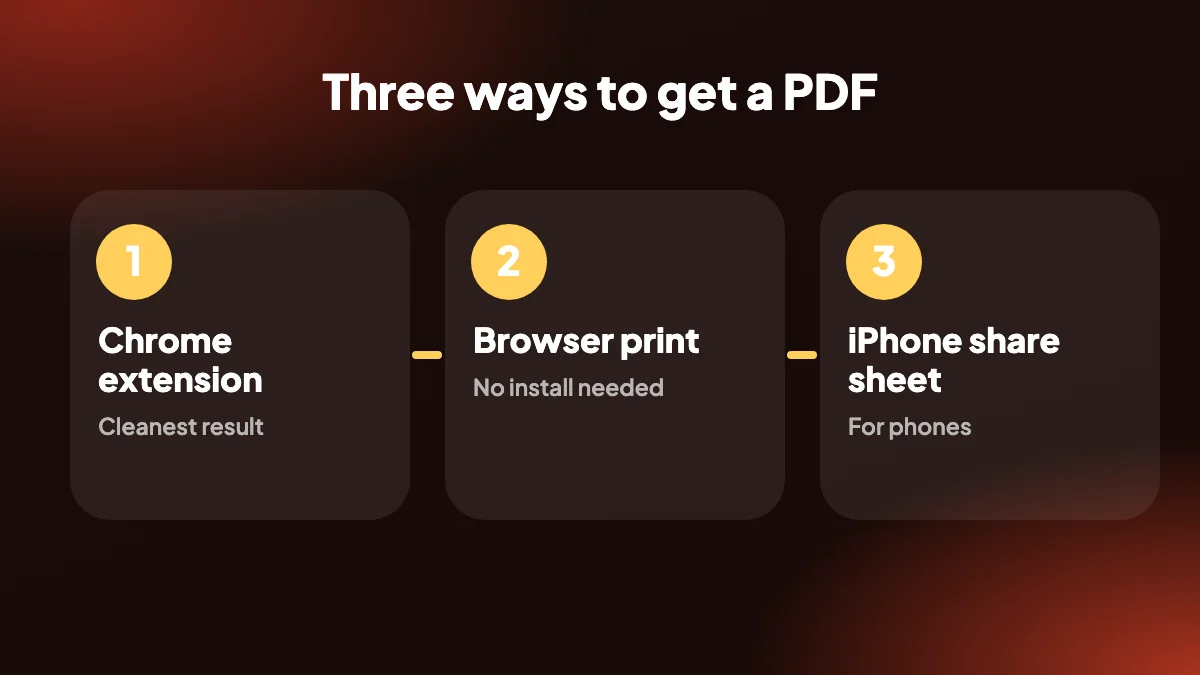
There are three practical ways to turn a ChatGPT chat into a PDF: a Chrome extension, your browser's print dialog, and your phone's share sheet. Here is how each one works and which to pick.
1. The quick answer
ChatGPT does not have a built-in "download as PDF" button for a single conversation, so you need a workaround. The fastest is a Chrome extension such as ChatGPT Exporter: open the chat, press Alt+Shift+P and choose "Save as PDF" in Chrome's print dialog. The most basic is to print the page from your browser.
If you are searching for how to export a ChatGPT conversation to PDF with decent formatting, the extension is the better route. If you only need a rough copy once, printing is fine. Phone users have a third option, covered below.
2. Method 1: Save ChatGPT as PDF with a Chrome extension
This is the cleanest result because the PDF is built from the conversation, not from the web page around it.
Install ChatGPT Exporter
Add it from the Chrome Web Store, then reload any open ChatGPT tab once so the buttons appear.
Open the conversation
Go to the chat on chatgpt.com. Optionally click SELECT and tick only the messages you want in the PDF.
Press Alt+Shift+P
Or choose PDF from the EXPORT menu. A preview opens with your page size, margins, theme, fonts and page numbers applied.
Choose Save as PDF
In Chrome's print dialog, set the destination to "Save as PDF" and click Save. The file is created locally on your computer.
See the dedicated ChatGPT to PDF page for every layout option, including a table of contents and a page break per prompt.
3. Method 2: Print a ChatGPT conversation from the browser
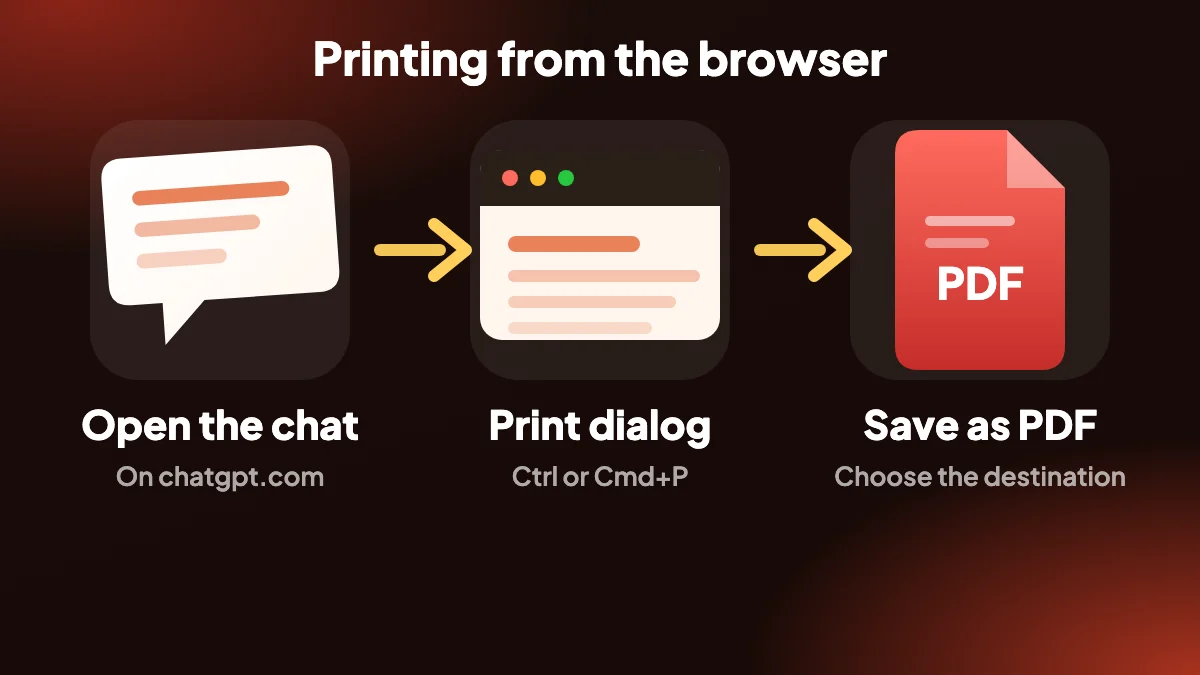
Many people ask how to print a ChatGPT conversation and the built-in route is simple: press Ctrl+P (Cmd+P on a Mac) on the chat page, set the destination to "Save as PDF" and save. It needs no install.
The trade-off is quality. Printing the page as it appears tends to include the sidebar and other interface clutter, can cut long code blocks at the page edge and puts page breaks wherever it likes. You also cannot pick individual messages. It is fine for a quick copy and weak for anything you plan to share.
4. Method 3: Save a ChatGPT conversation as PDF on iPhone
The extension is a desktop Chrome add-on, so on a phone you use the built-in tools. Phone users often search for how to save a ChatGPT conversation on iPhone, and the usual route is Safari's print preview.
Open the chat in Safari
Go to chatgpt.com in the browser and open the conversation.
Open the share sheet
Tap Share, then Print.
Turn the preview into a PDF
Pinch out on the print preview thumbnail to open it full screen as a PDF.
Save it
Tap the Share icon again and choose Save to Files.
Android works in a similar way: use the browser's Share or Print option and choose Save as PDF. To keep your whole history rather than one chat, see how to export all ChatGPT conversations.
5. Which method should you choose?
| Method | Best for | Choose messages | Layout control |
|---|---|---|---|
| Chrome extension | Clean, shareable PDFs on desktop | Yes | Page size, margins, theme, fonts, page numbers |
| Browser print | A quick one-off copy | No | Limited |
| iPhone share sheet | Saving from your phone | No | Limited |
Need an editable file instead? Use ChatGPT to Word. Want an image instead? Use ChatGPT to PNG. Want to see every format side by side? The format comparison covers them all.
6. Fixing the usual problems with a printed PDF
If you used the browser's print dialog and the result looks off, you are not doing anything wrong. Printing was never designed for chat pages, so a few settings make a big difference.
- The sidebar is in the PDF. In the print dialog, open More settings and look for an option to hide it, or collapse the sidebar in ChatGPT before you print.
- Code lines are cut off at the edge. Switch the page to landscape, or scale the page down a little. An export built for PDF lets you wrap code instead.
- Pages split in the middle of an answer. Set the margins to default and try a different scale. There is no way to force a break between messages from the print dialog.
- The background is dark and uses a lot of ink. Switch ChatGPT to a light theme before printing, or tick the option to remove background graphics.
- Only the visible part prints. Scroll to the top of the chat first so the whole conversation is loaded.
7. Saving on Android and in other browsers
Android works much like the iPhone. In Chrome, open the menu, choose Share, then Print, and set the destination to Save as PDF. Samsung Internet and Firefox have similar options in their menus. On a Mac, the Print dialog in Safari has a PDF button at the bottom left with Save as PDF.
Phones are fine for a quick copy and weak for a document you plan to share, because mobile browsers print the narrow mobile layout. If the PDF matters, save it from a computer with the extension, where you control the page size, margins and theme.
8. Which version should you keep?
For anything that may be read by other people, a PDF built for the job beats a printed web page every time. For your own reference, either will do. A habit we like is to keep the rough print for the moment and export a proper one for the chats that turn out to matter. The full set of layout options, including a table of contents and a page break per prompt, is in the ChatGPT to PDF guide.
And if what you need is not a PDF at all, there are other routes. Use Word to keep editing, Markdown for notes, or copy the text if you only need a reply.
Frequently asked questions
How do I save a ChatGPT conversation as a PDF?
Install a Chrome extension such as ChatGPT Exporter, open the chat and press Alt+Shift+P, then choose "Save as PDF" in the print dialog. Alternatively, print the page from your browser and save it as a PDF.
Can I export a ChatGPT conversation to PDF for free?
Yes. Browser printing is free, and ChatGPT Exporter has a Free plan with 5 full exports and 7 single exports a month. See pricing for the paid plans.
Why does a print dialog open when I export to PDF?
PDF export goes through Chrome's own print dialog. You choose "Save as PDF" as the destination, which keeps the whole process offline.
How do I print only part of a ChatGPT conversation?
With the extension, click SELECT, tick the messages you want and export. Browser printing cannot select individual messages.
How do I save a ChatGPT conversation as a PDF on iPhone?
Open the chat in Safari, tap Share then Print, pinch out on the preview to turn it into a PDF, then Share and Save to Files.
Will code blocks and tables survive in the PDF?
With the extension, yes: code blocks, tables, lists, links and images are included, and you can choose whether code wraps. Browser printing may cut long lines.
Does the PDF show my chat to anyone else?
No. The PDF is created on your computer and saved to your downloads. Nothing is uploaded.
Is there a way to get a table of contents or page numbers?
Yes. Both are options in the ChatGPT Exporter settings, along with page size, margins, theme and fonts.
Is it safe to print ChatGPT to PDF in my browser?
Yes. Printing to PDF happens on your device. Nothing is uploaded, though the file contains your whole conversation, so be careful where you send it.
How do I save a ChatGPT chat as PDF on Android?
In Chrome, open the menu, choose Share, then Print, and set the destination to Save as PDF.