Pasting from ChatGPT often brings odd fonts, stray spacing or loses your headings. These four methods get clean, usable text into your document.
1. Method 1: Use the copy button
People type how to copy and paste from chat gpt into search all the time, and the simplest answer is the copy icon under each reply. Click it, switch to your document and paste. It copies one answer at a time and brings ChatGPT's formatting with it.
In Word or Google Docs, paste with Ctrl+Shift+V (Cmd+Shift+V on a Mac) to paste without formatting, which strips fonts and colours so the text takes on your document's style.
2. Method 2: Copy the whole chat as rich text
For a long conversation, copying reply by reply is tedious. With ChatGPT Exporter you can copy everything, or just the messages you choose, in one go.
Click SELECT
Tick the messages you want, or use the Answers preset to skip your own prompts.
Click the copy icon
Choose rich text for Word, Google Docs or Notion. Choose Markdown, text, JSON or CSV for other uses.
Paste
Paste into your document. Headings, lists and tables keep their formatting.
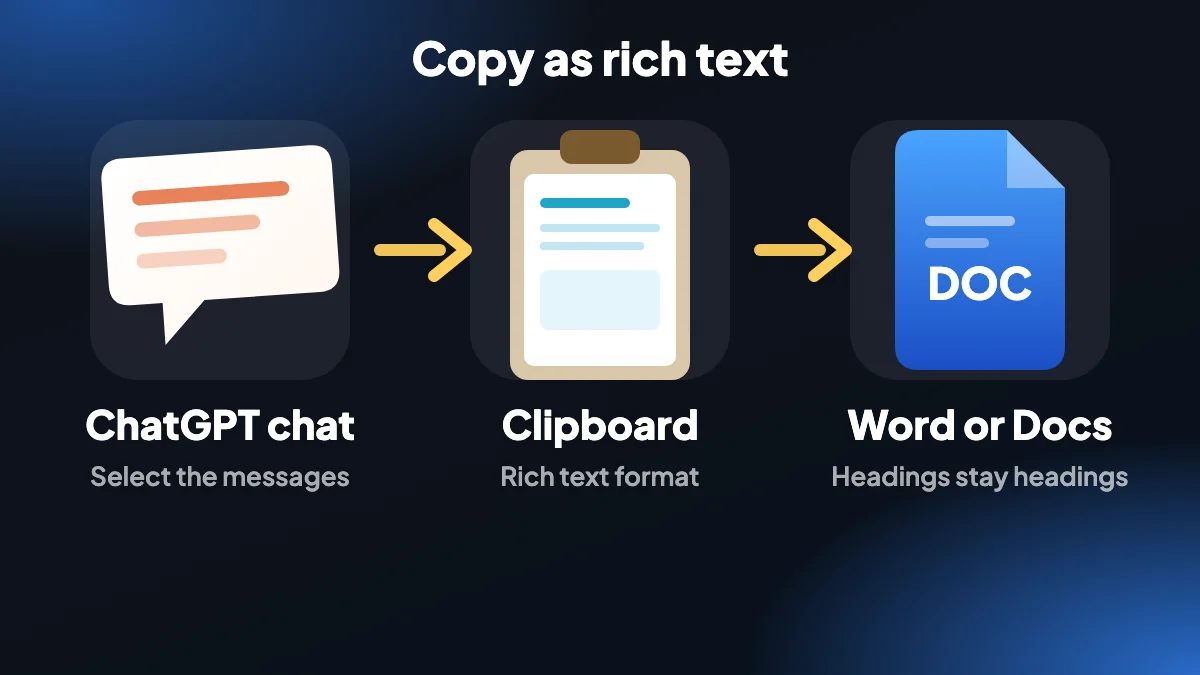
The copy feature page lists every clipboard format.
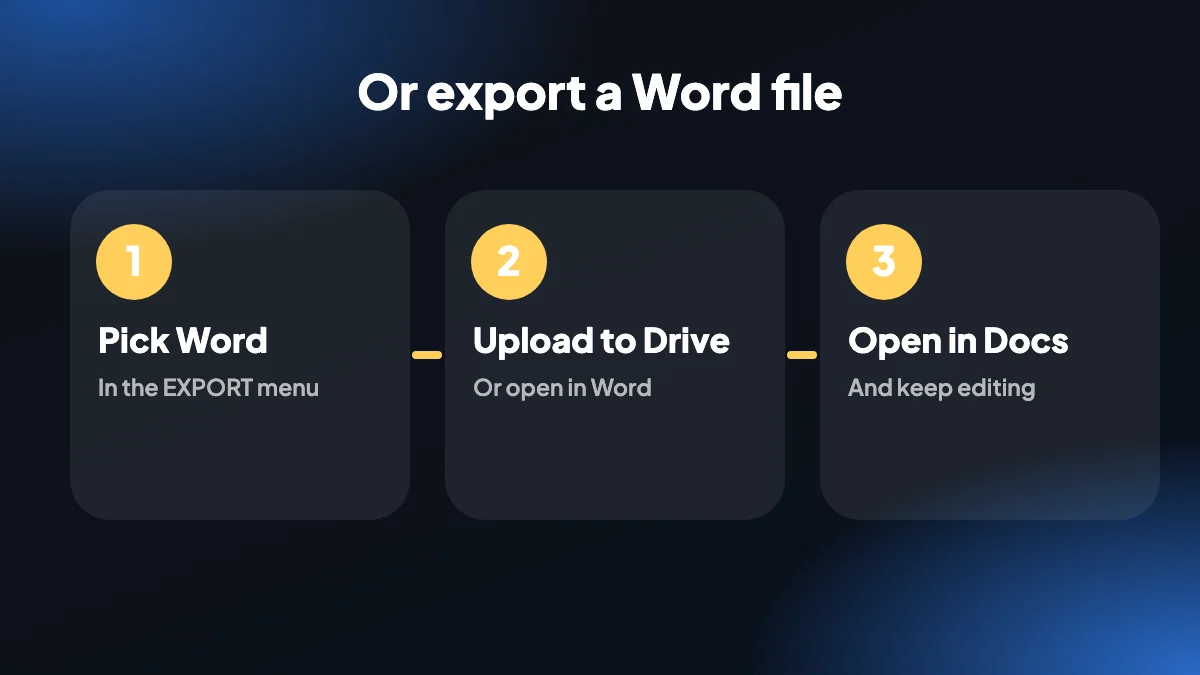
3. Method 3: Export ChatGPT to Word and open it in Google Docs
If you want a file rather than a paste, export the chat to Word. The .docx opens in Microsoft Word directly. To use it in Google Docs, upload the file to Google Drive, then open it with Google Docs. This is the route for ChatGPT to Google Docs when the formatting matters.
4. Method 4: Paste into Notion
To export ChatGPT to Notion, copy the selection as rich text or Markdown and paste it into a Notion page. Markdown pasted into Notion is converted into headings, lists and code blocks. For a file-based route, save a Markdown export and import it.
5. Tips for a clean paste
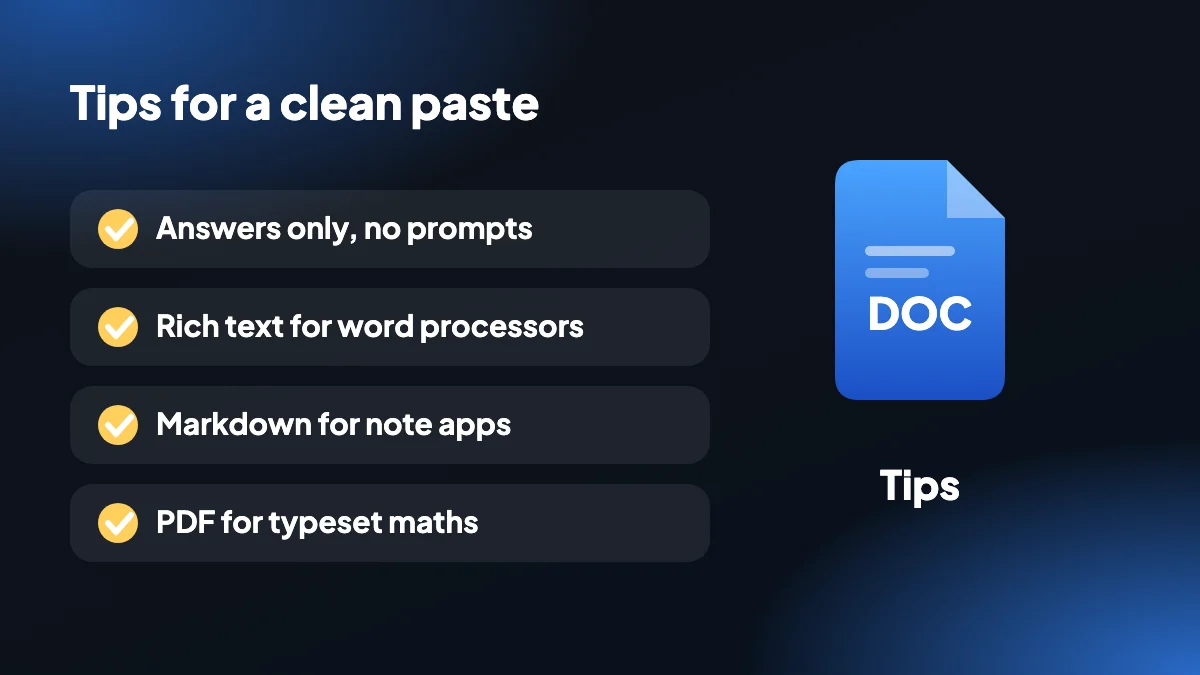
- Use Answers only when you want content without your prompts.
- Pick rich text for word processors and Markdown for note apps and code editors.
- If equations look odd in Word, remember they are stored as LaTeX text. Use PDF for typeset maths.
- Everything is copied on your computer. Nothing is sent to a server.
6. Why pasting from ChatGPT goes wrong
If you have ever pasted a ChatGPT answer into Word and watched it arrive in a different font, with oddly large gaps between the paragraphs and bullets that no longer line up, you have met the same problem everyone meets. The text on a web page carries its own styling, and your document tries to honour it.
There are really two failures here. Sometimes the paste brings too much formatting along: web fonts, grey code backgrounds, spacing that belongs to the page. Other times it brings too little, and your headings and tables collapse into a wall of text. Which one you get depends on where you copied from and where you paste to, and that is why the fix is different in each case.
7. Which method for which problem
| What you are seeing | What to try |
|---|---|
| Fonts and spacing do not match my document | Paste without formatting with Ctrl+Shift+V (Cmd+Shift+V on a Mac) |
| Headings, lists or tables turn into plain text | Copy as rich text with the extension, then paste normally |
| I need the whole conversation, not one reply | Use SELECT, then copy the whole selection in one go |
| I want a file I can send | Export to Word and open the .docx |
| It is going into a note app | Copy as Markdown instead of rich text |
8. Cleaning up a paste that already happened
If the text is already in your document and looks wrong, you do not have to retype it. In Word, select the pasted section and use Clear All Formatting from the Home tab, then apply your own heading and list styles. In Google Docs, select the text and use Format, then Clear formatting (Ctrl+backslash).
Lists are the stubborn part. If every bullet has become a separate paragraph with a stray dash in front, find and replace the leading dash with nothing, select the lines and apply a proper bulleted list. Two minutes of tidying is quicker than fighting the original paste.
Code is the other common casualty. Paste it into a code block style or a monospaced font so that indentation survives, because proportional fonts make Python and YAML look broken even when they are correct.
9. Pasting into Google Docs, step by step
Copy with the format that matches
Choose rich text in the copy menu if you want headings and tables to carry over. Choose text if you only want the words.
Paste into a blank section
Click where you want the content and paste. Google Docs keeps the structure and applies your document's default font.
Fix the styles in one pass
Select a heading and use Format, then Paragraph styles, then Update to match. Every heading of that level changes at once.
Check tables before you share
Wide tables sometimes run past the margin. Drag the table edge in, or switch the page to landscape for that section.
For long conversations, saving a file is easier than pasting in pieces. Our Word export builds the document for you, and the copy guide covers every clipboard format.
10. Keep a record of where it came from
- Copy your own prompts too when the question matters to the answer. A reader cannot judge a recommendation without knowing what was asked.
- Note the date and the model you used at the top of the document. ChatGPT answers change over time, and a future you will want the context.
- If the answer cites web sources, keep the numbered source list. It is the part people check later.
Frequently asked questions
How do I copy and paste from ChatGPT without losing formatting?
Copy the selection as rich text with ChatGPT Exporter, then paste into Word or Google Docs. Headings, lists and tables keep their formatting.
How do I paste from ChatGPT without the formatting?
Paste with Ctrl+Shift+V (Cmd+Shift+V on a Mac) to paste as plain text so it matches your document's style.
How do I copy a whole ChatGPT conversation?
Open SELECT, keep All selected, click the copy icon and choose a format. The extension copies the full chat to your clipboard.
Can I copy ChatGPT to Google Docs?
Yes. Copy as rich text and paste into Google Docs, or export a Word file and open it with Google Docs from Drive.
Can I export ChatGPT to Notion?
Yes. Copy as rich text or Markdown and paste into Notion, or import a Markdown file.
Why are my ChatGPT equations odd in Word?
In Word files, equations are stored as LaTeX text rather than native Word equations. Use PDF for typeset equations.
Does copying work on mobile?
The extension is for desktop Chrome. On mobile, use the copy button under each ChatGPT reply.
Is my chat sent anywhere when I copy?
No. The text goes from the page to your clipboard on your own computer.
Why does ChatGPT text look different after pasting into Word?
Because the copied text brings the web page's fonts and spacing with it. Paste without formatting, or copy as rich text and then apply your own styles.
How do I remove the formatting after I have already pasted?
In Word use Clear All Formatting on the Home tab. In Google Docs use Format, then Clear formatting. Then apply your own heading and list styles.
What is the fastest way to move a long ChatGPT chat into Word?
Export it as a Word file instead of pasting. The .docx is built from the conversation, so headings, lists and tables are already in place.