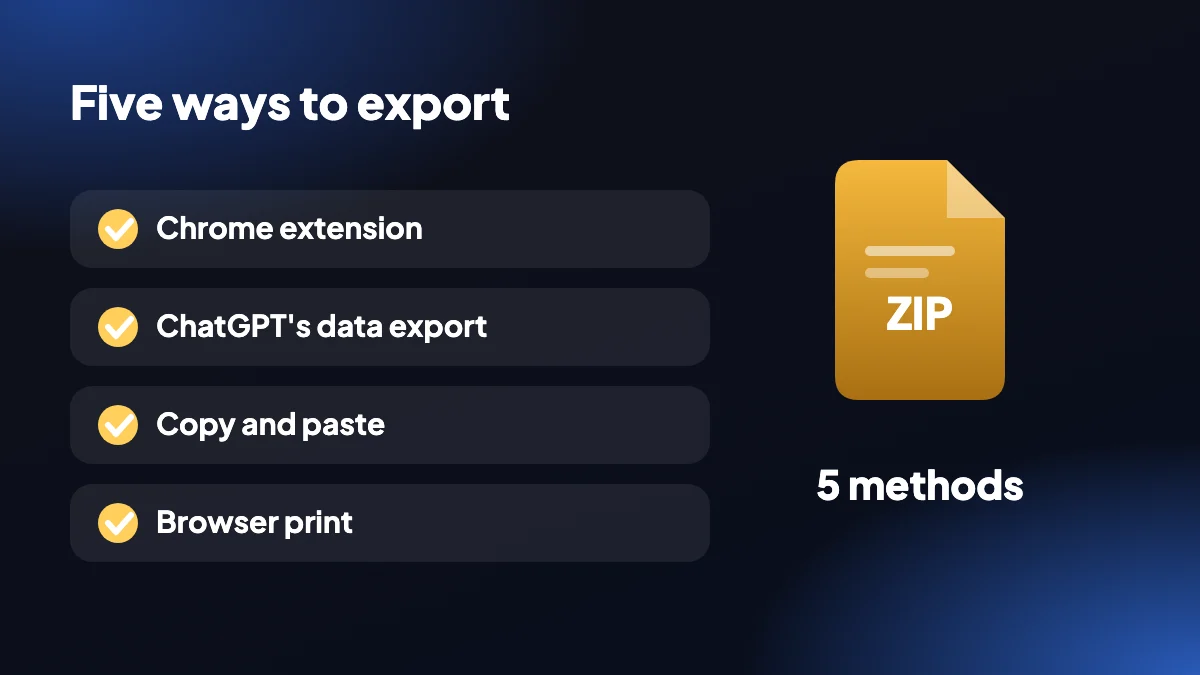
Whether you want to save one chat, back up your whole history or paste an answer into a document, there is a method that fits. This guide compares all five.
1. The five ways to export a ChatGPT conversation
People ask can I download a ChatGPT conversation because the ChatGPT page has no obvious save button. You can, in several ways, and they differ a lot in speed, formatting and how much of your history they cover.
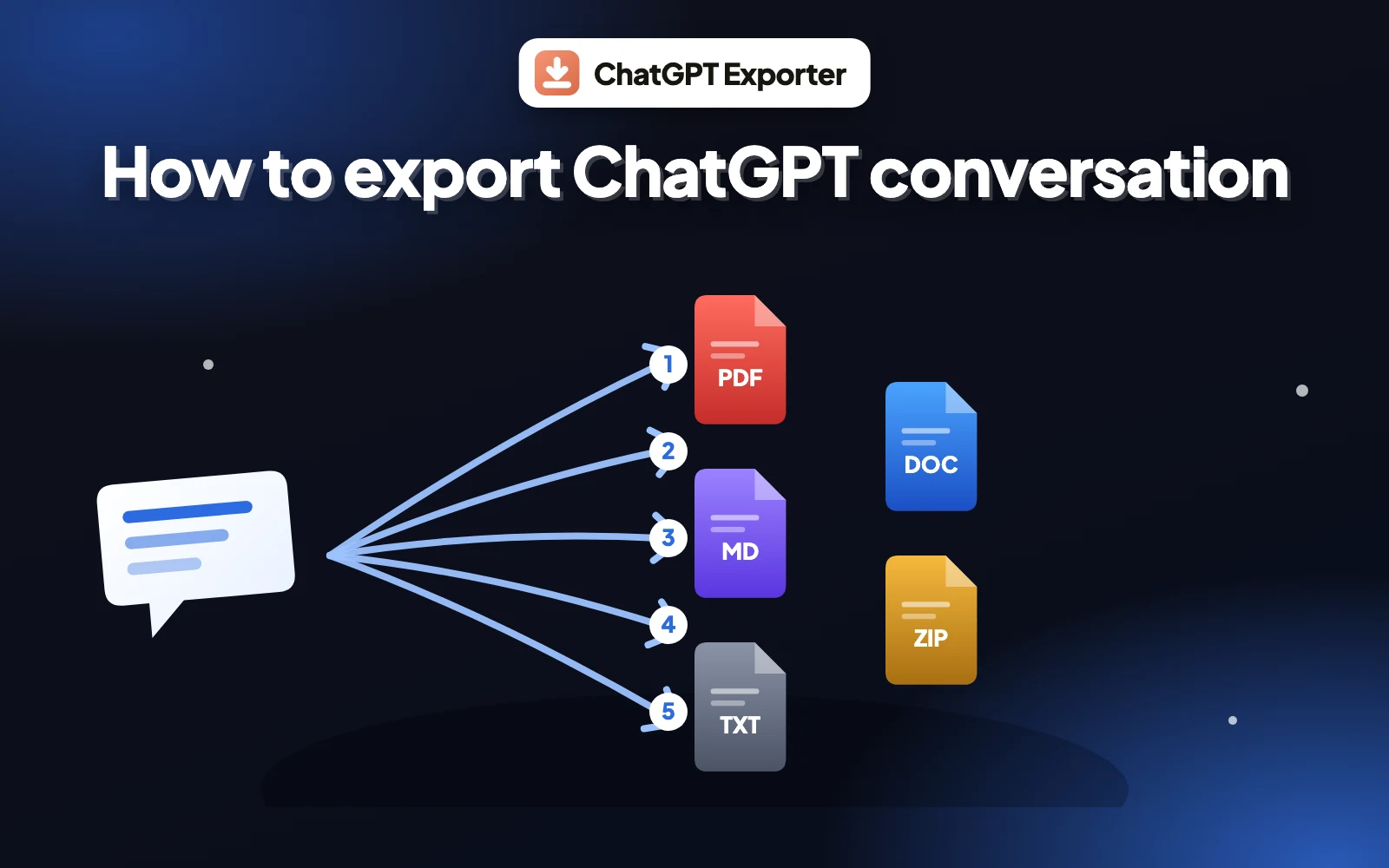
| Method | Best for | Output | Speed |
|---|---|---|---|
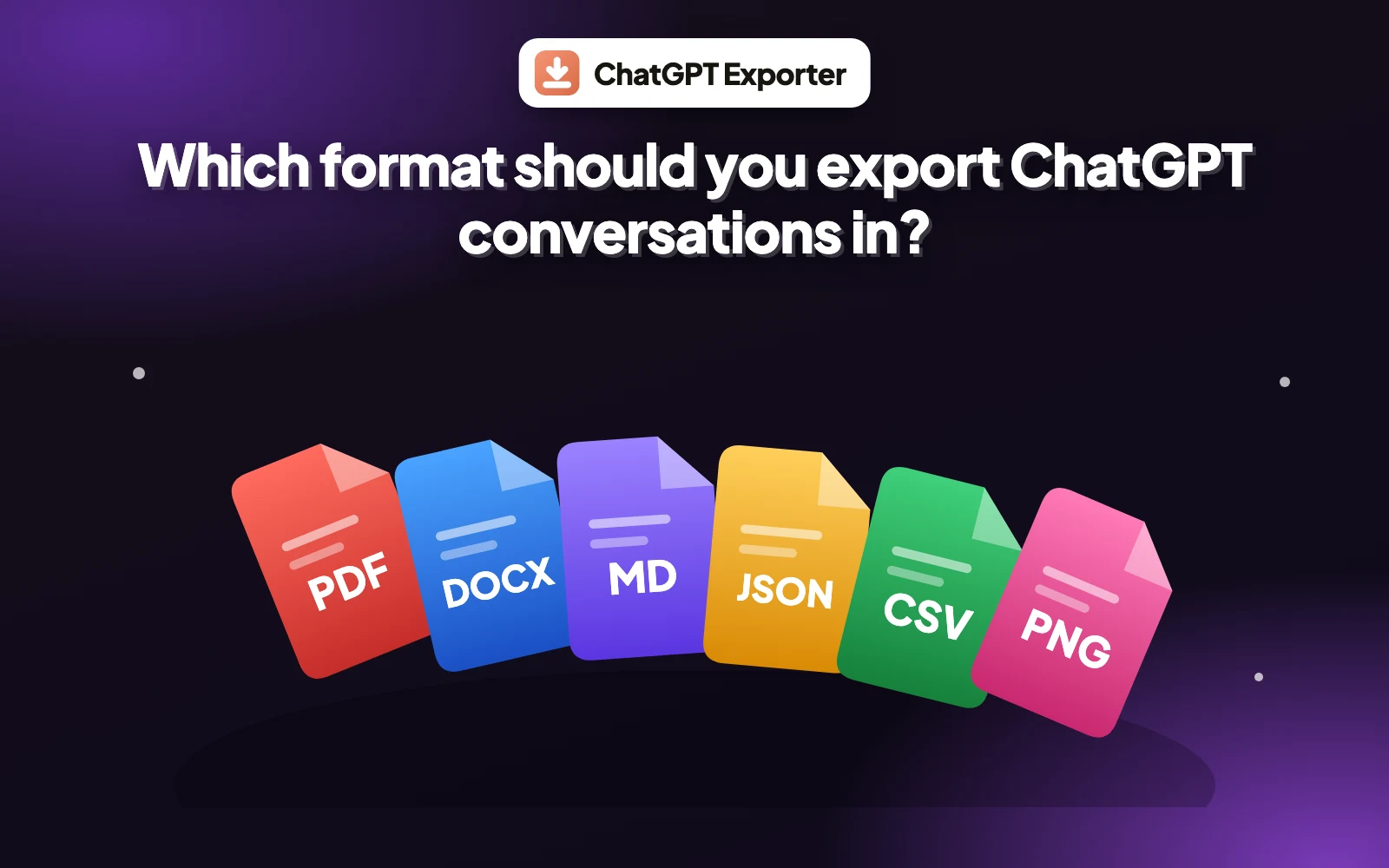
| Chrome extension | One chat, in the format you choose | PDF, Word, Markdown, HTML, text, JSON, CSV, PNG | Seconds |
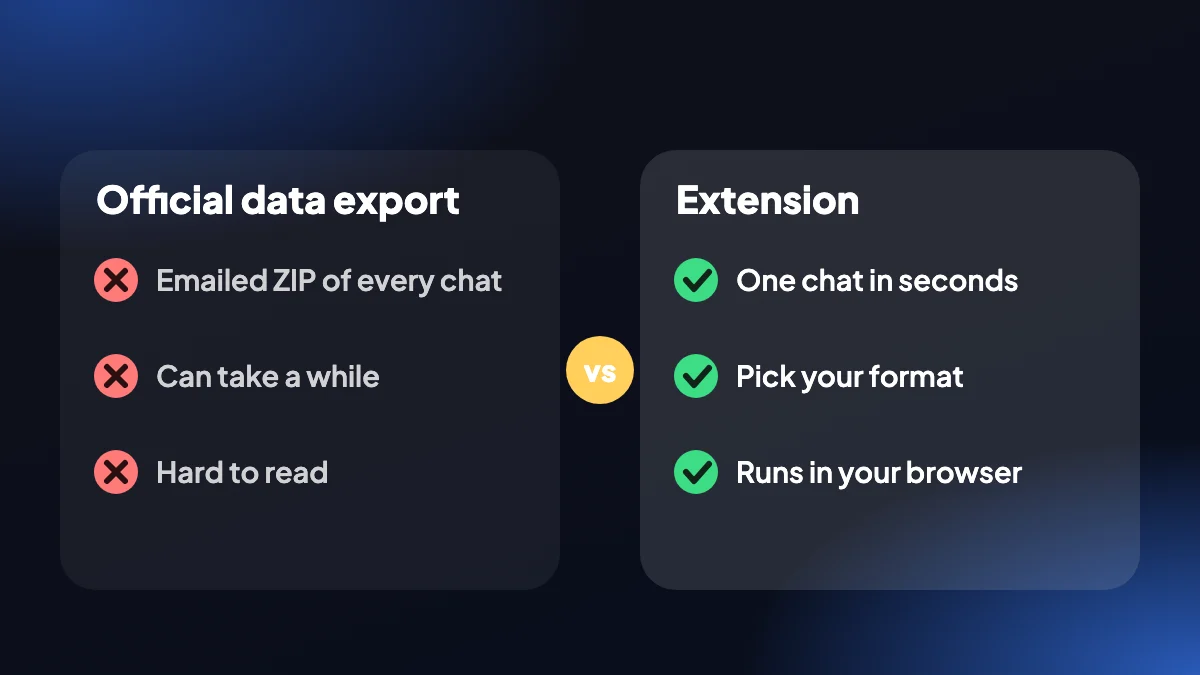
| Official data export | A full account archive | ZIP with HTML and JSON files | Wait for an email |
| Copy and paste | One reply into a document | Pasted text | Seconds |
| Browser print | A rough PDF copy | Seconds | |
| Share link | Showing a chat to someone online | A web link, not a file | Seconds |
2. Method 1: Export ChatGPT conversation with a Chrome extension
An extension such as ChatGPT Exporter adds buttons to ChatGPT so you can download a ChatGPT conversation in one click, in the format you need. It works on the chat you have open, lets you choose which messages to keep and runs locally in your browser.
Install ChatGPT Exporter
Add it from the Chrome Web Store and reload your ChatGPT tab once.
Open the chat
Look for the SELECT and EXPORT buttons in the bottom-right corner.
Choose a format
Click the arrow beside EXPORT and pick PDF, Word, Markdown or another format. The file downloads straight away.
Details for each format are on the ChatGPT export extension page.
3. Method 2: ChatGPT's official data export
In ChatGPT, open Settings, then Data controls, then Export data. ChatGPT emails you a download link for a ZIP file containing your conversations. It is the only way to get your entire account history in one go, but you wait for the email and the files are built for storage rather than reading.
The ChatGPT data export guide explains what is inside the archive, and ChatGPT export not working covers the common problems.
4. Methods 3 to 5: copy, print and share
Under each ChatGPT reply there is a copy button, which is the quickest way to save a ChatGPT conversation reply by reply, though it copies one answer at a time. Our copy feature copies a whole chat or a selection as rich text or Markdown, and this guide shows how to paste it into Word and Google Docs.
Printing the page and choosing "Save as PDF" works without installing anything, with rougher formatting. The print and phone guide has the details.
ChatGPT's Share button creates a link to a conversation. That is useful for showing someone a chat, but it is a web link rather than a file, so it does not give you a copy to keep. Treat anyone with the link as able to read it.
5. Which method is best?
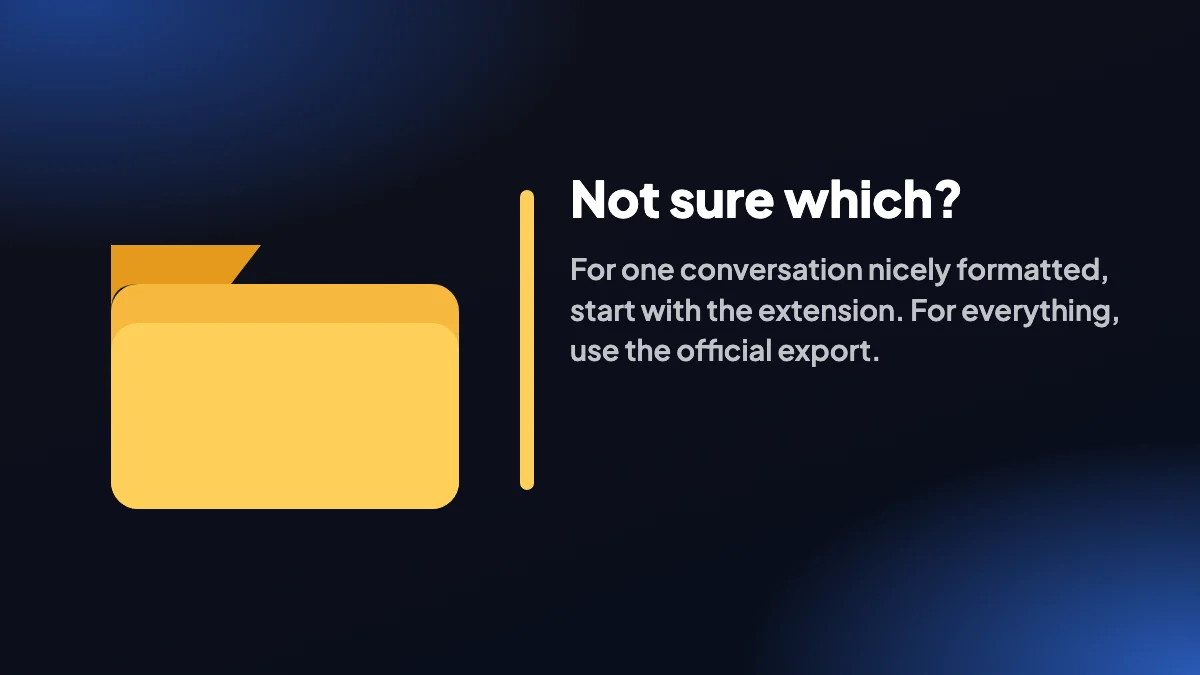
- One conversation, nicely formatted: use the extension, and export to PDF or Word.
- Everything in your account: use the official data export, or the extension's bulk export for specific chats.
- One answer into a document: use the copy button.
- A quick look, no install: print the page.
To export without an account on our side: the Free plan needs no sign-up. You do still need to be signed in to ChatGPT to open your own conversations. Comparing extensions? See the best ChatGPT exporter checklist.
6. Ten minutes to set up a habit that works
Most people only look for a way to export when they have already lost something. The better time is now, while nothing is wrong. Here is a small routine that covers the situations we hear about most.
Install an extension today
Do it before you need it, and export one throwaway chat to confirm the buttons work.
Choose your two default formats
Most people settle on PDF for sharing and Markdown for keeping. Having a default makes exporting automatic.
Export important chats when you finish them
A long project conversation is easiest to save the moment it is done, while you remember why it matters.
Request the official export once a quarter
It is slow, but it catches everything else.
7. Match the method to the situation
- "I need this for a meeting in ten minutes." Export a PDF with the extension, or copy the answer and paste it.
- "I am about to delete my account." Request the official export first, and save the chats you care about as files too.
- "I want to keep my best prompts." Export to Markdown or JSON and keep them in a folder.
- "I want to show someone a conversation." Use PDF for a document, or PNG for a slide.
- "I am on my phone." Use the browser's share or print option, or wait until you are at a computer. The PDF guide shows the phone method.
8. What no method will do
It helps to be clear about the limits. An export is a copy, not a backup of ChatGPT itself, so you cannot restore it into the app. Sharing a link is not a copy and depends on the link staying live. And no tool can recover a chat that has already been deleted. The surest protection is to export what matters while you still have it.
The quality of what you save depends on the format. If you are unsure which to use, the format guide explains what each one keeps and loses. If an export fails, here is how to fix it.
Frequently asked questions
How do I export a ChatGPT conversation?
The quickest way is a Chrome extension such as ChatGPT Exporter: open the chat and choose a format from the EXPORT menu. You can also use ChatGPT's official data export, copy and paste, or print to PDF.
Can I download a ChatGPT conversation?
Yes. Use an extension to download one chat as PDF, Word, Markdown and more, or request the official data export from Settings for your whole history.
How do I save a ChatGPT conversation?
Export it as a file with an extension, copy it to your clipboard, or save it as a PDF. Saving in ChatGPT itself only keeps it in your chat history.
What is the best way to export a ChatGPT conversation?
For a single chat, a Chrome extension gives the most control. For a complete account archive, use the official data export.
Do I need to log in to save a ChatGPT conversation?
You need to be signed in to ChatGPT to open your own conversations. ChatGPT Exporter itself needs no account on the Free plan.
Can I export a ChatGPT conversation to a file?
Yes. The extension saves PDF, Word, Markdown, HTML, text, JSON, CSV and PNG files.
Is the Share link the same as an export?
No. A share link points to a page online. It is not a file you can keep, and it depends on the link staying available.
Can I export only part of a conversation?
Yes. With the extension, click SELECT and tick the messages you want.
Can I get my ChatGPT conversations back after deleting them?
Not reliably. If you may need a chat later, export it before you delete it.
Is there a way to export a ChatGPT conversation on my phone?
The extension is for desktop Chrome. On a phone, use the browser's Share or Print option and save the page as a PDF, or copy the answer with the copy button.