If your export email never arrived, the link has expired or the extension buttons are missing, work through these fixes in order. Most problems are solved in the first few.
1. ChatGPT data export not working: the official export
The official export is requested in ChatGPT under Settings, Data controls, Export data, and delivered as a link in an email. Most failures are about that email.
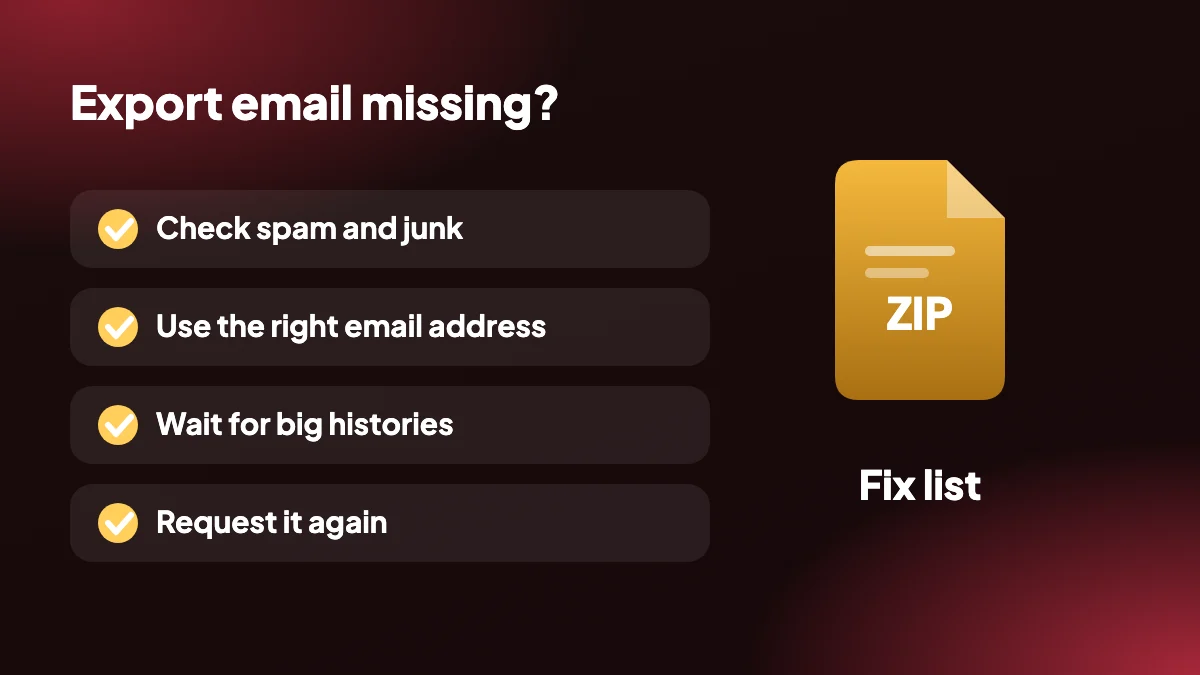
Check spam, promotions and junk
This solves most ChatGPT export not received problems. Search your mailbox for the sender and for "ChatGPT data export".
Use the right email address
The message goes to the email on your ChatGPT account. If you signed up with a different address, look there.
Wait longer for big histories
Large accounts take longer to prepare. Give it several hours before assuming it failed.
Download within 24 hours
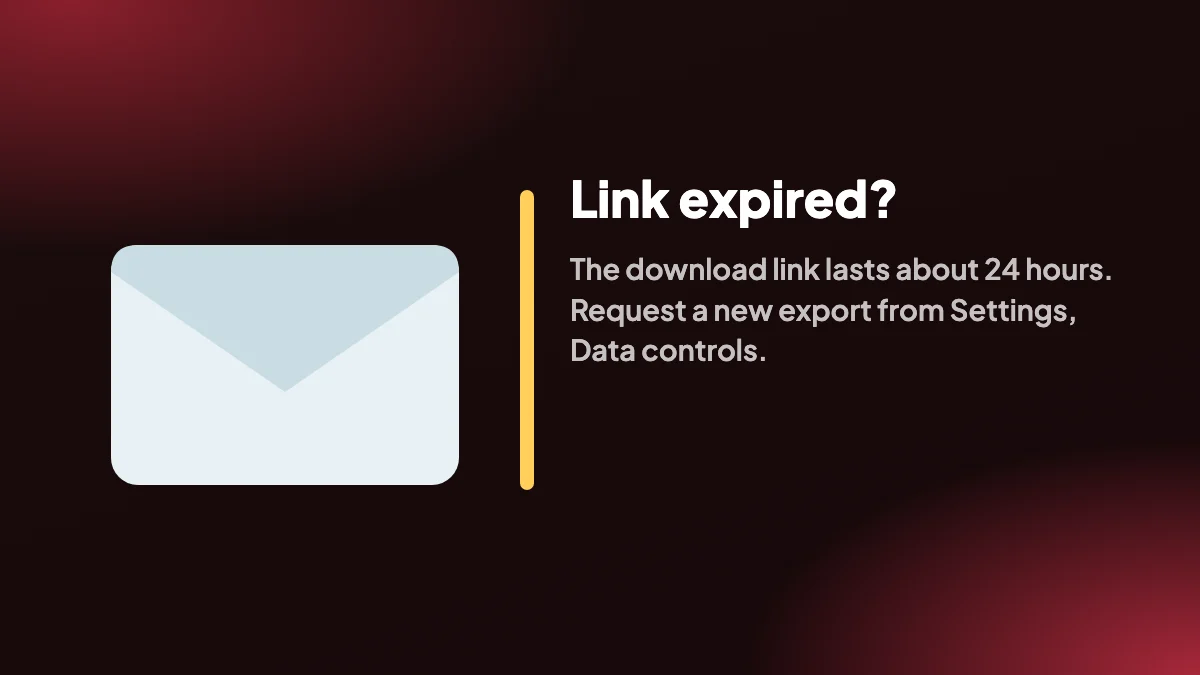
The link expires about 24 hours after it is sent. If it has expired, request a new export.
Request it again
Start a fresh export from Settings and check that you are signed in to the account you expect.
Try another browser
Open the link in a different browser, or a private window, to rule out extensions or cached sessions.
2. ChatGPT export not working: the extension buttons
If you use a Chrome extension and nothing happens, these are the usual causes.
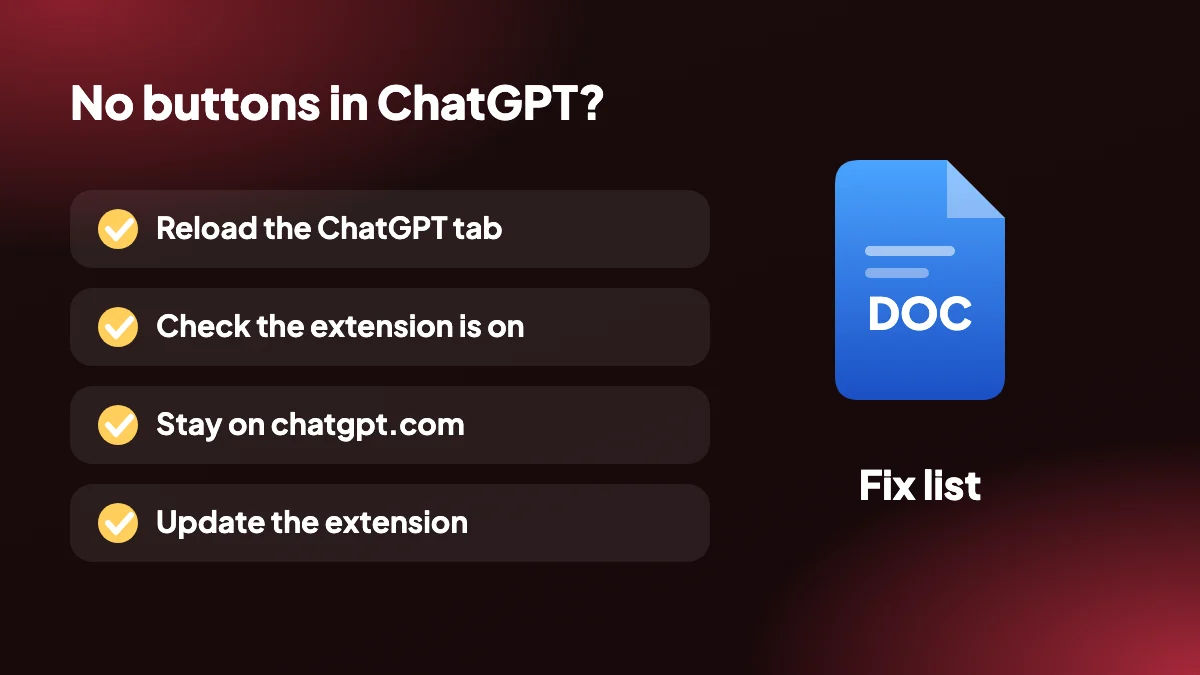
- No SELECT or EXPORT buttons: reload the ChatGPT tab. Chrome only adds an extension to pages that load after it is installed.
- Extension disabled: open chrome://extensions and make sure ChatGPT Exporter is switched on.
- Wrong page: the buttons appear on chatgpt.com conversations, not on other sites.
- Export fails or content is missing: ChatGPT changes its website from time to time. Update the extension from chrome://extensions, then try again.
- A print window opens for PDF: that is expected. Choose "Save as PDF" as the destination.
- Free plan limit reached: the Free plan has a monthly quota of 5 full exports and 7 single exports, which resets each month.
More fixes, plus the keyboard shortcuts, are on the help page.
3. Still stuck? Use a different route
If the official export will not arrive, you do not have to wait. Open the conversation you need and export it directly with the extension, or copy it with the copy feature. For several chats at once, use bulk export.
To understand what the official archive contains before you request it again, read the ChatGPT data export guide.
4. First, work out which export is failing
"ChatGPT export not working" describes two very different problems, and the fixes for one do nothing for the other. Spending ten minutes on the wrong list is the most common reason people stay stuck.
| What you see | Which export | Start with |
|---|---|---|
| No email, or the link says it has expired | Official data export | Spam folder, then request it again |
| The ZIP downloads but will not open | Official data export | Download again and try a different unzip tool |
| No SELECT or EXPORT buttons on ChatGPT | Chrome extension | Reload the tab and check chrome://extensions |
| A print window opens when I choose PDF | Chrome extension | This is normal: choose Save as PDF |
| The file is created but looks wrong or incomplete | Chrome extension | Update the extension and export again |
5. When the extension buttons do not appear
If a reload did not fix it, work down this list. Each step takes under a minute.
Do a hard reload
Press Ctrl+Shift+R (Cmd+Shift+R on a Mac) on the ChatGPT tab. A normal reload can keep a stale copy of the page.
Confirm you are on a conversation
The buttons belong to chats on chatgpt.com. They will not show on the settings screen or an empty new chat.
Pause other extensions
Ad blockers, script blockers and other ChatGPT add-ons can interfere. Turn the others off briefly and reload to see if the buttons return.
Try a clean window
Open a new Chrome profile or a private window with the extension allowed. If it works there, something in your main profile is getting in the way.
Reinstall
Remove the extension from chrome://extensions, add it again from the Chrome Web Store and reload ChatGPT. Your settings are not lost by this.
6. When the file comes out wrong
A file that downloads but looks wrong is usually one of three things. The first is a ChatGPT change: the site is updated often, and an extension may need a release to catch up. Update from chrome://extensions and export again. The second is a very long conversation that has not finished loading; scroll to the top and bottom once, wait for the page to settle and try again. The third is the format itself. Equations in a Word file are stored as LaTeX text, and HTML needs an internet connection to draw them, so what looks like a bug is a known limit; the format guide lists what each format keeps.
7. What to send if you ask for help
If none of this works, tell us what you tried. A report that says "it does not work" takes several rounds to solve. One that includes the following is often solved in a single reply:
- The format you were exporting and whether it was one chat or a bulk export.
- Your Chrome version and operating system.
- Whether the buttons appear at all, and the exact message if there is an error.
- Whether it fails on every conversation or only one, and roughly how long that conversation is.
- What you already tried from this page.
You can reach support from the contact page. Please do not paste private conversations into a bug report; a description is enough.
8. How to avoid the problem next time
Export something small right after you install, so you know the whole path works before you need it under pressure. Keep the extension up to date. And if an export matters, do not leave it to the last minute: a deadline is the worst time to discover the email went to an old address. The data export guide explains what to check before you ask for an archive.
Frequently asked questions
Why is my ChatGPT data export not working?
The most common causes are the email landing in spam, the link expiring after about 24 hours, or a large history taking longer to prepare. Check spam first, then request the export again.
Why did I not receive my ChatGPT export email?
Check spam and junk folders and make sure you are looking in the mailbox for the email address on your ChatGPT account. If it still has not arrived after several hours, request it again.
My ChatGPT export link has expired. What now?
The link is only valid for about 24 hours. Go to Settings, Data controls, Export data and request a new one.
Why can I not see the SELECT and EXPORT buttons?
Reload your ChatGPT tab after installing the extension, and check the extension is enabled at chrome://extensions.
Why does my PDF export open a print window?
PDF export uses Chrome's print dialog. Choose "Save as PDF" as the destination to create the file.
The export is missing some content. Why?
ChatGPT changes its website from time to time, and the extension may need an update. Update it from chrome://extensions and try again.
Does the extension work without the official export?
Yes. ChatGPT Exporter is independent of the official export and reads the conversation you have open in your browser.
Where can I get more help?
The help page covers installation, shortcuts and common problems in more detail, and the guides cover every export method.
Why is my ChatGPT ZIP file empty or will not open?
Download the file again from the link, since an interrupted download can leave a damaged archive, and try another unzip tool. If it is still empty, request a new export.
Can I export a ChatGPT conversation if the official export fails?
Yes. The extension reads the chat you have open and does not depend on the official export, so you can still save the conversation you need.
Do I need to update the extension when ChatGPT changes?
Chrome updates extensions automatically in most cases. If something breaks after a ChatGPT change, check chrome://extensions and update manually.