ChatGPT lets you download an archive of your account. Here is how to request it, how long it takes, what is inside and when a browser extension is the quicker choice.
1. What is the ChatGPT data export?
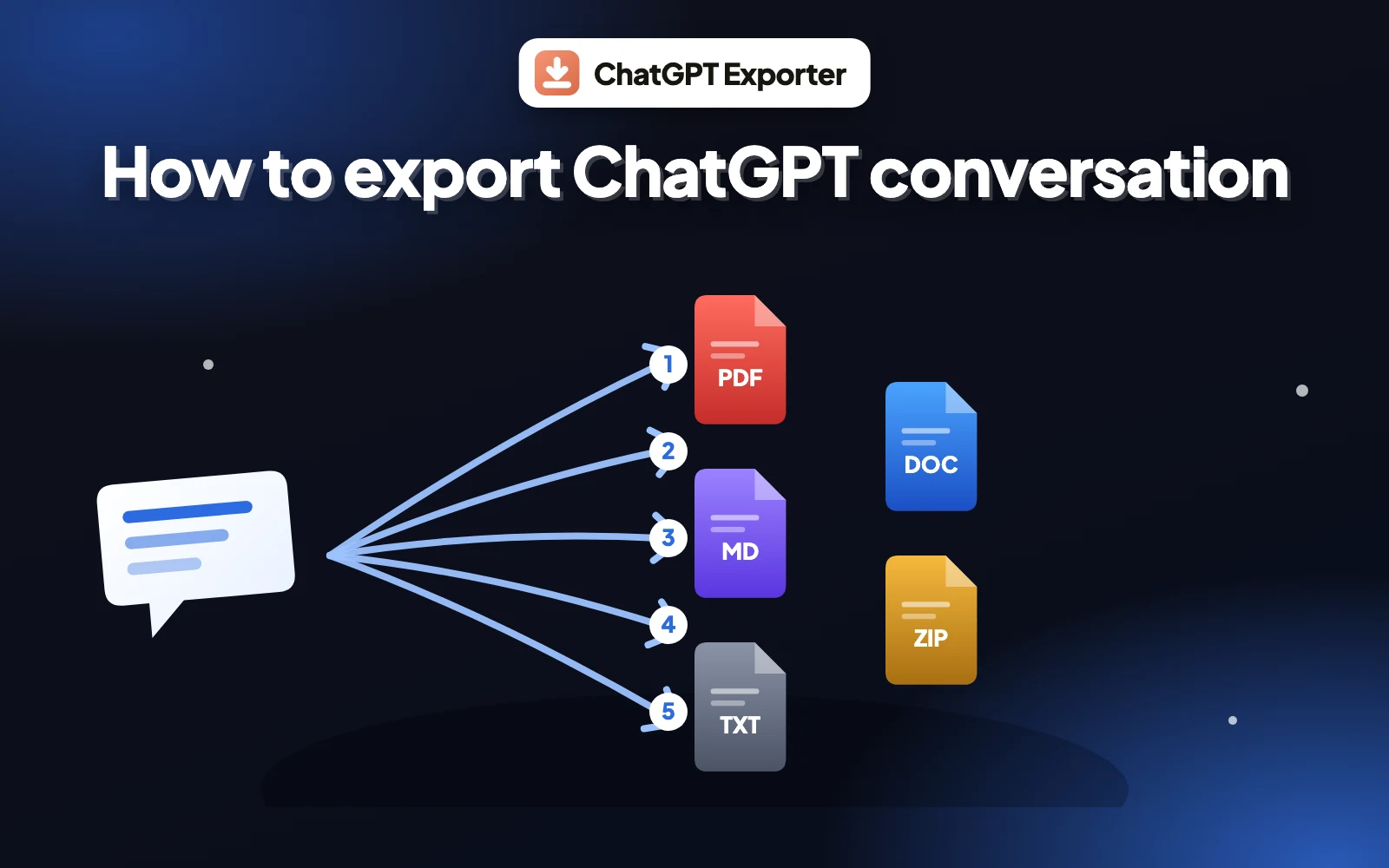
The data export is a feature in ChatGPT's settings that packages your account data into a downloadable archive. When people search ChatGPT export data or export ChatGPT history, this is usually what they mean. It is meant for taking a complete copy of everything, not for saving one conversation neatly. To compare it with other methods, see how to export a ChatGPT conversation.
2. How to request your ChatGPT data export
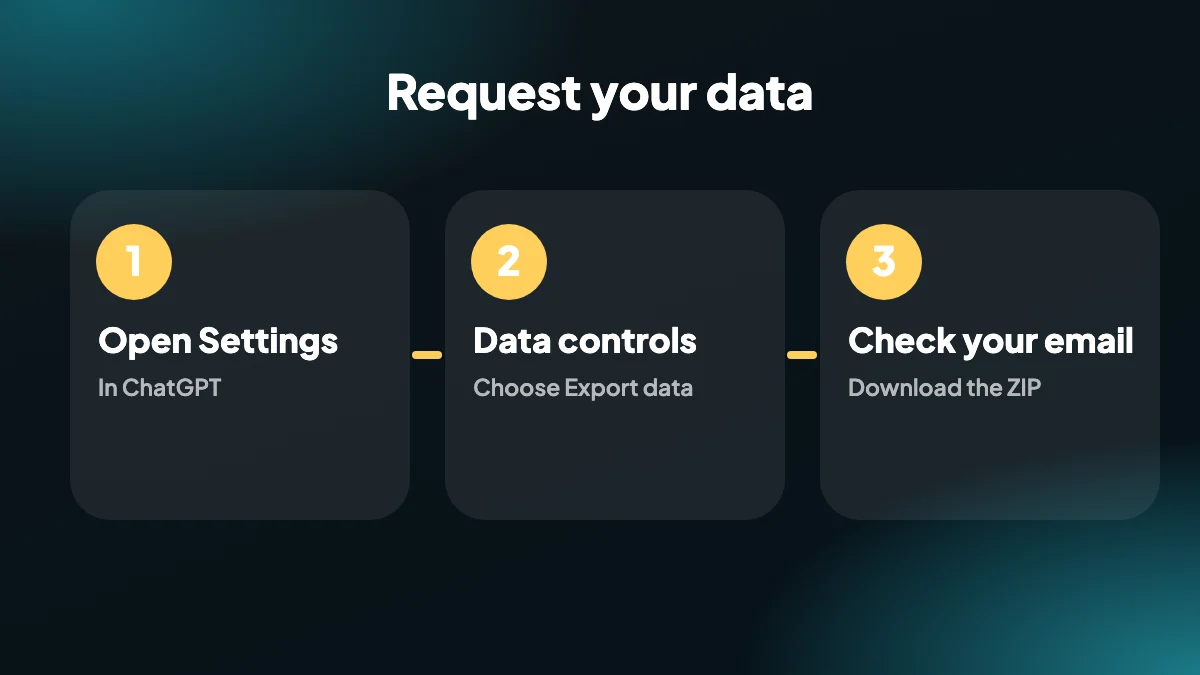
Open Settings
In ChatGPT, click your profile and open Settings.
Go to Data controls
Find the Data controls section and choose Export data.
Confirm the export
Confirm the request. ChatGPT prepares the archive in the background.
Download from your email
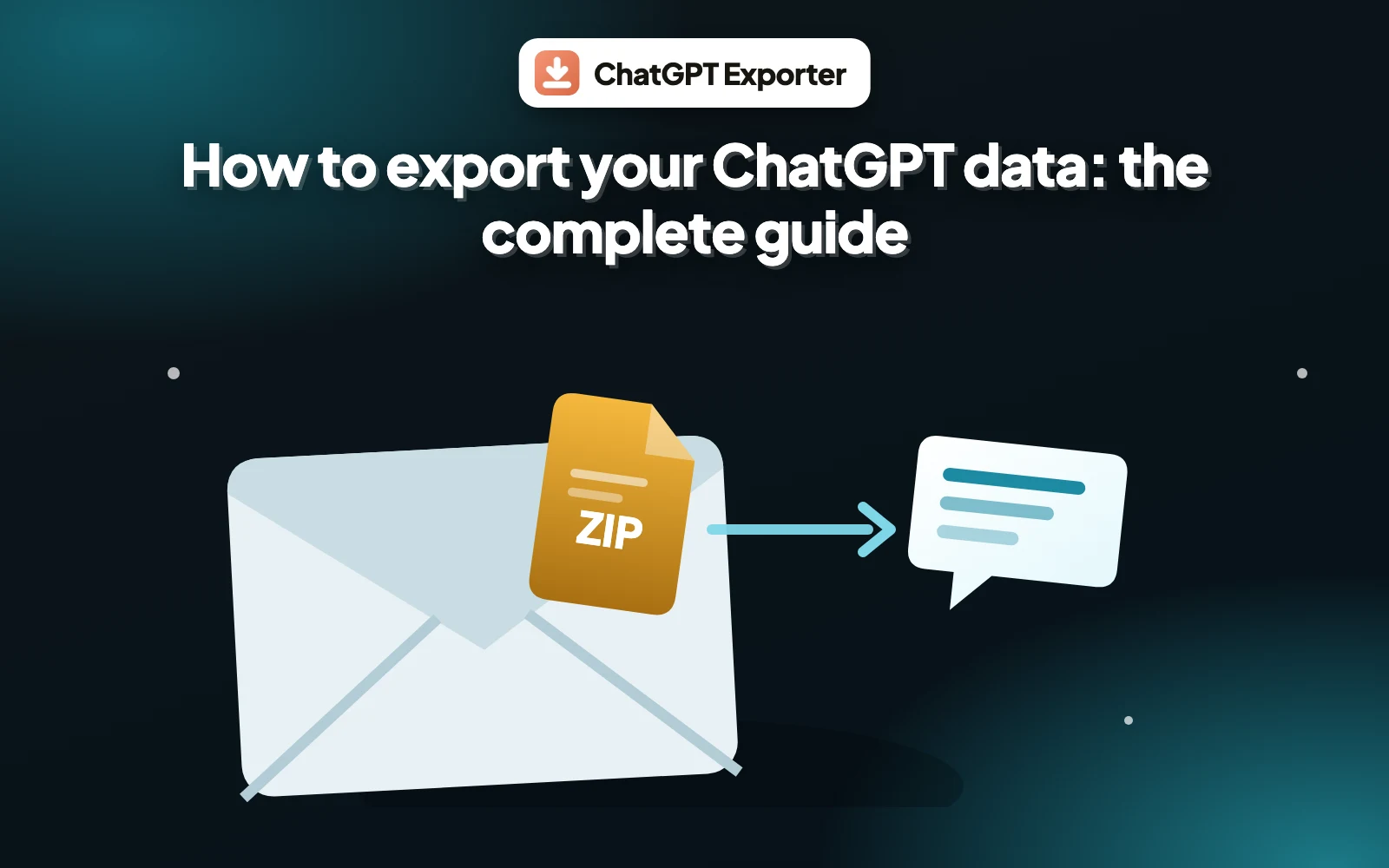
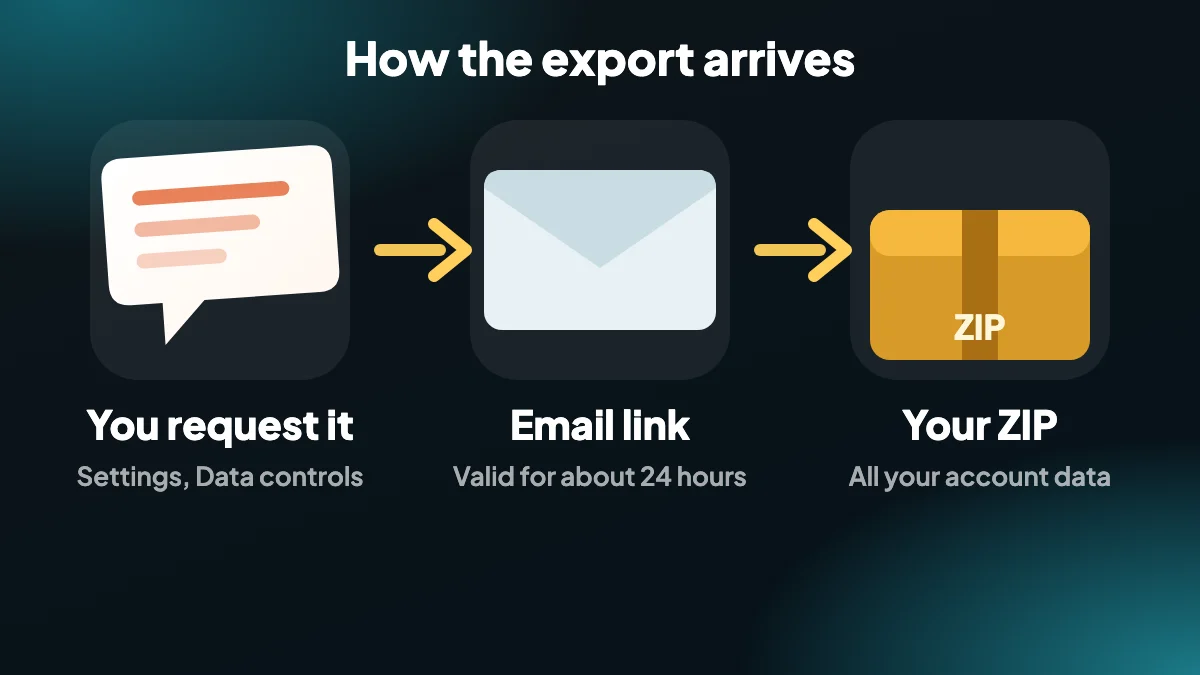
A message arrives with a download link. Download the ZIP from it, and do not wait: the link expires about 24 hours after it is sent.
3. How long does the ChatGPT data export take?
People often ask how long a ChatGPT data export takes. For a small account the email can arrive within minutes. Large histories take longer to prepare, and there is no countdown, so check back later and look in your spam folder before assuming it failed.
If it never arrives, the ChatGPT export not working guide walks through each fix.
4. What is inside the export ZIP?
The archive contains your conversations in a structured data file and as a web page you can open in a browser, along with other account information. It is complete, but it is a single large file of everything rather than a tidy document per conversation, which makes it awkward when you only want one chat.
| Official data export | ChatGPT Exporter extension | |
|---|---|---|
| Scope | Your whole account | The chats you choose |
| How you get it | Email link to a ZIP | Instant download in your browser |
| Formats | Structured data and a web page | PDF, Word, Markdown, HTML, text, JSON, CSV, PNG |
| Pick messages | No | Yes, with SELECT |
| Wait time | Minutes to longer | Seconds |
5. When to use the extension instead
Use the official export for a full account backup or when you need everything for records. Use ChatGPT Exporter when you want a particular conversation as a PDF, Word or Markdown file right now, or a selection of chats in one ZIP with bulk export.
6. Before you request it: a short checklist
The export itself is easy. What trips people up is the timing and the housekeeping around it, so a minute of preparation saves a second attempt.
- Check the email on your account. The download link goes to the address you signed up with, which is not always the one you read every day.
- Be signed in to the right account. If you use a personal and a work login, the export only covers the one you are in.
- Make room. The ZIP of a busy account can be large, and it expands to more once you open it.
- Plan to download the same day. The link stops working after about 24 hours, and you will have to ask again.
- Choose a safe place to keep it. The archive is a full copy of your conversations, so treat it like a document, not like a screenshot.
7. What to do once the ZIP arrives
Unzip it somewhere you can find it again. Inside you will typically see a web page that lists your conversations and a data file that holds the same conversations in structured form, along with a few account files. Names and layout can change over time, so treat this as a description rather than a promise.
Opening the web page in a browser is the easiest way to confirm the export worked. You can scroll through, search with Ctrl+F and spot-check a chat you remember. For a large history this page can be slow, which is normal when everything is in one file.
The data file is the useful one if you are technical. Each conversation is a set of messages with roles and timestamps, and you can load it into a script, a notebook or a database to search across everything at once. If you would rather not write code, export a chat to CSV and use a spreadsheet instead.
8. Why the export is awkward for single chats
The official export is built for completeness, not for reading. It answers the question "can I get all my data?" very well and the question "can I get that one conversation as a clean document?" poorly. You cannot choose a single chat, you cannot choose the format, and you end up searching a large file for the one thing you wanted.
That is the gap an extension fills. If a client asked for the notes from last Tuesday's session, you do not want to request an archive and wait; you want to open that chat and export it as a PDF or a Word file in a few seconds. Both approaches have a place, and many people use the official export as a periodic backup and an extension for day-to-day work.
9. When to export before something changes
A few moments are worth treating as deadlines for a backup:
- Before you delete your account, or close a work account tied to a company email.
- Before you change plans or move to a different workspace.
- Before you clear a long chat history to tidy things up.
- Before a project ends and the person who owns the chats leaves the team.
- When a conversation contains something you cannot recreate, such as a long design discussion or a carefully tuned prompt.
If your plan is to back up many specific chats rather than everything, the extension's bulk export lets you pick the conversations and download them together as a ZIP.
10. Keeping the archive private
An export is a complete record of what you asked and what you were told, and for many people that includes work details, client names and personal questions. Keep the ZIP on an encrypted drive or in a password-protected folder, do not forward the email with the link, and delete the download link email once you have the file. If you ever share part of the archive, share a single chat as a PDF rather than the whole thing.
Frequently asked questions
How do I export my ChatGPT data?
Open Settings, go to Data controls, choose Export data and confirm. ChatGPT emails you a link to download a ZIP of your data.
How long does the ChatGPT data export take?
It can arrive within minutes for small accounts and take longer for large histories. Check your spam folder before requesting again.
How long is the download link valid?
The link in the email expires about 24 hours after it is sent, so download the file promptly.
What does the ChatGPT export include?
Your conversations as structured data and as a viewable web page, plus other account information, in one ZIP file.
Can I export only one conversation with the data export?
No. The official export covers your account. To save a single chat, use an extension such as ChatGPT Exporter.
Is the official export the same as the extension?
No. The official export is account-wide and arrives by email. The extension exports the chats you choose instantly in the format you pick.
Does ChatGPT Exporter use the official export?
No. It reads the conversation you have open in your browser and builds the file locally.
How do I export my ChatGPT history to a readable file?
Use bulk export in the extension to download chosen chats as a ZIP, or export individual chats as PDF, Word or Markdown.
Can I get the ChatGPT export in PDF or Word?
Not from the official export, which is delivered as a ZIP of structured data and a web page. To get PDF, Word or Markdown, export the chat with an extension such as ChatGPT Exporter.
Does the official export include deleted chats?
You should not count on it. Export before you delete anything you may want later.
How often should I back up my ChatGPT history?
A good rhythm is monthly for active users, and always before closing an account or changing plans. Save important single chats as soon as you finish them.