
Chrome extension · Free to install
AI Chat Exporter: export chats from every AI site in one click
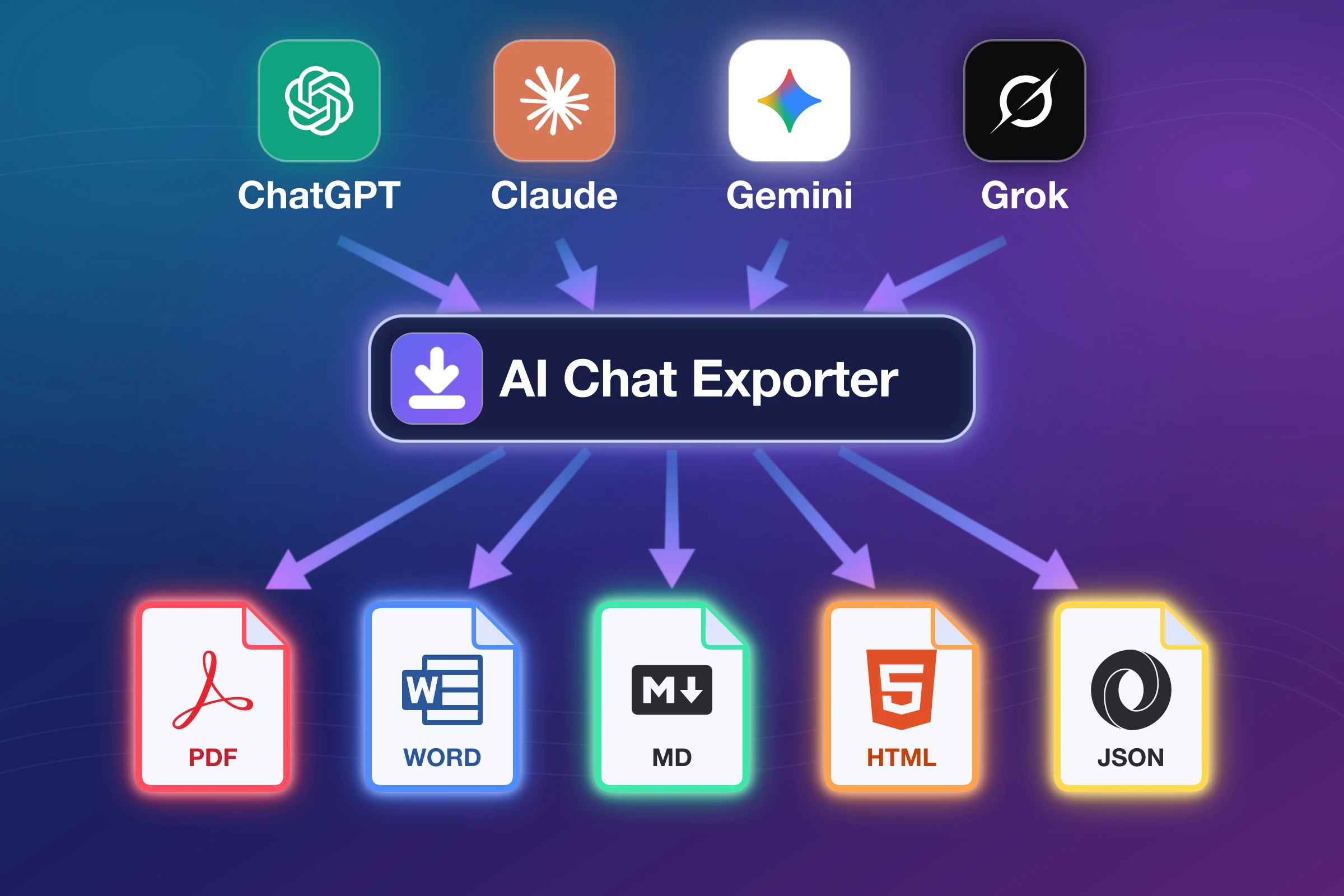
AI Chat Exporter is one extension that works on every supported AI chat site: ChatGPT, Claude, Gemini and Grok, so every conversation can become a PDF, Word or Markdown file.
Free plan · No account to start · Runs locally in desktop Chrome
- One-click export
- Keeps tables and code
- Free to start
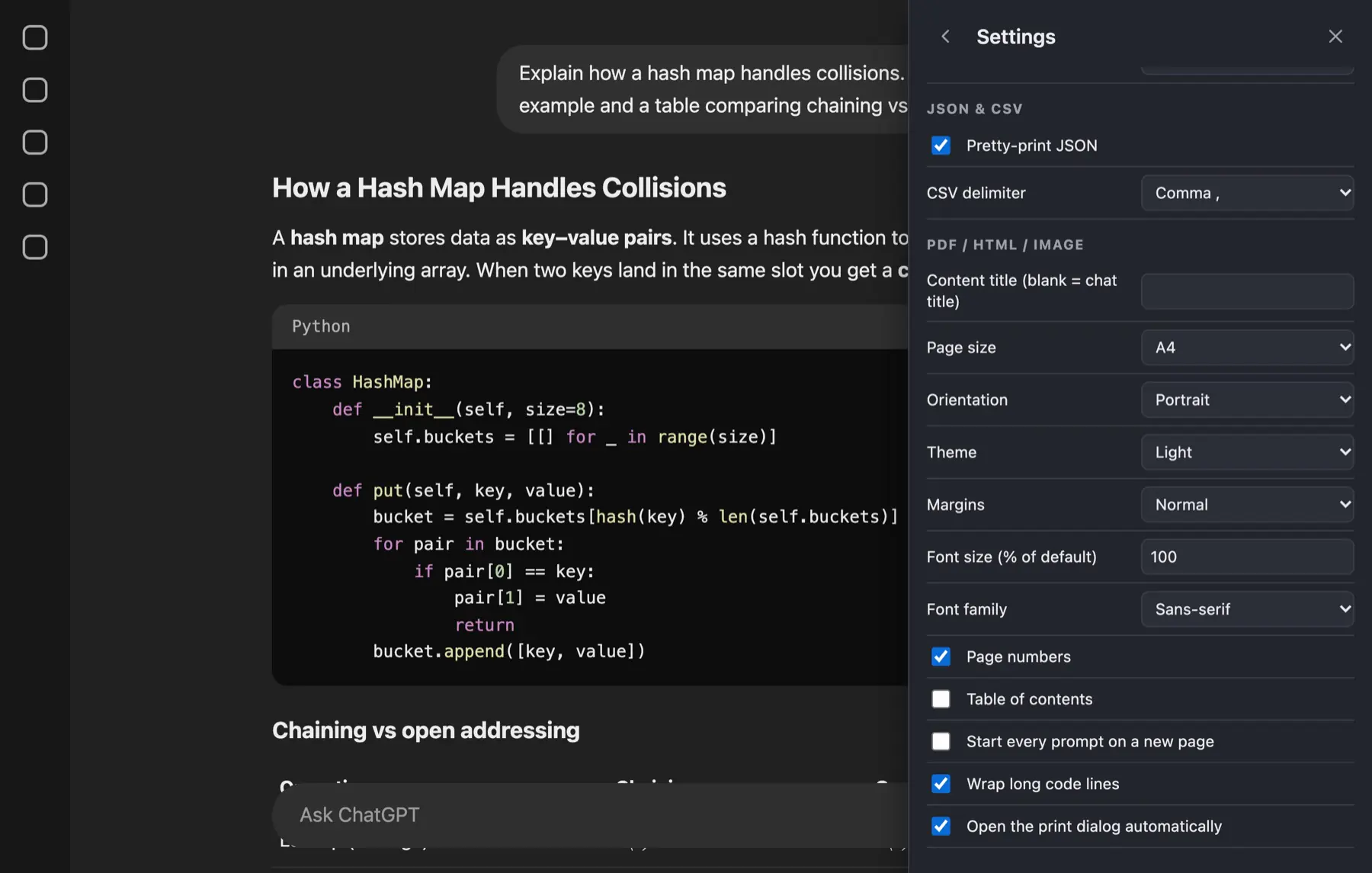
- One-click export
- Keeps tables and code
- Free to start
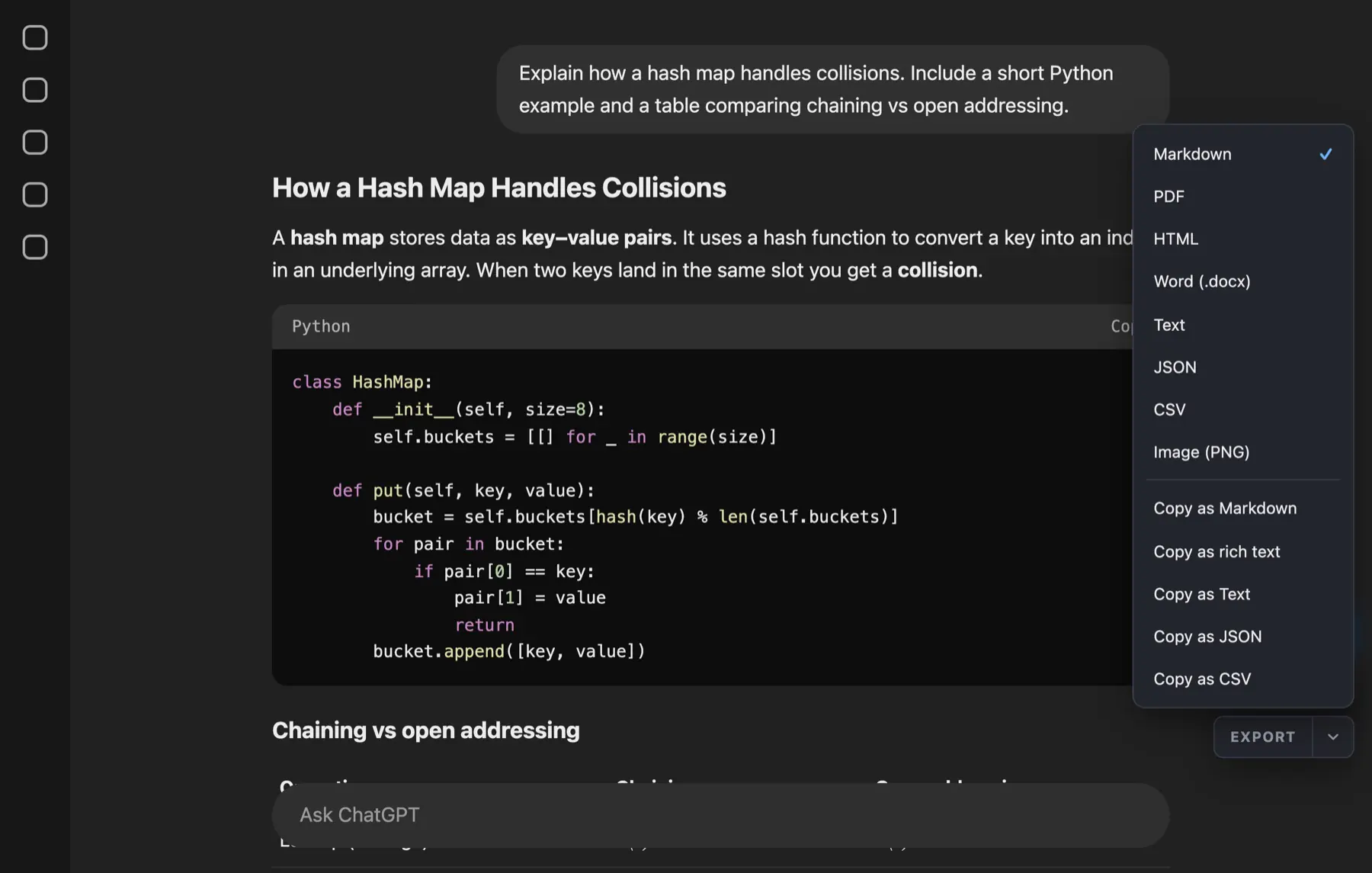
- Tick single messages
- Presets: Answers, Questions
- Shift+click for a range
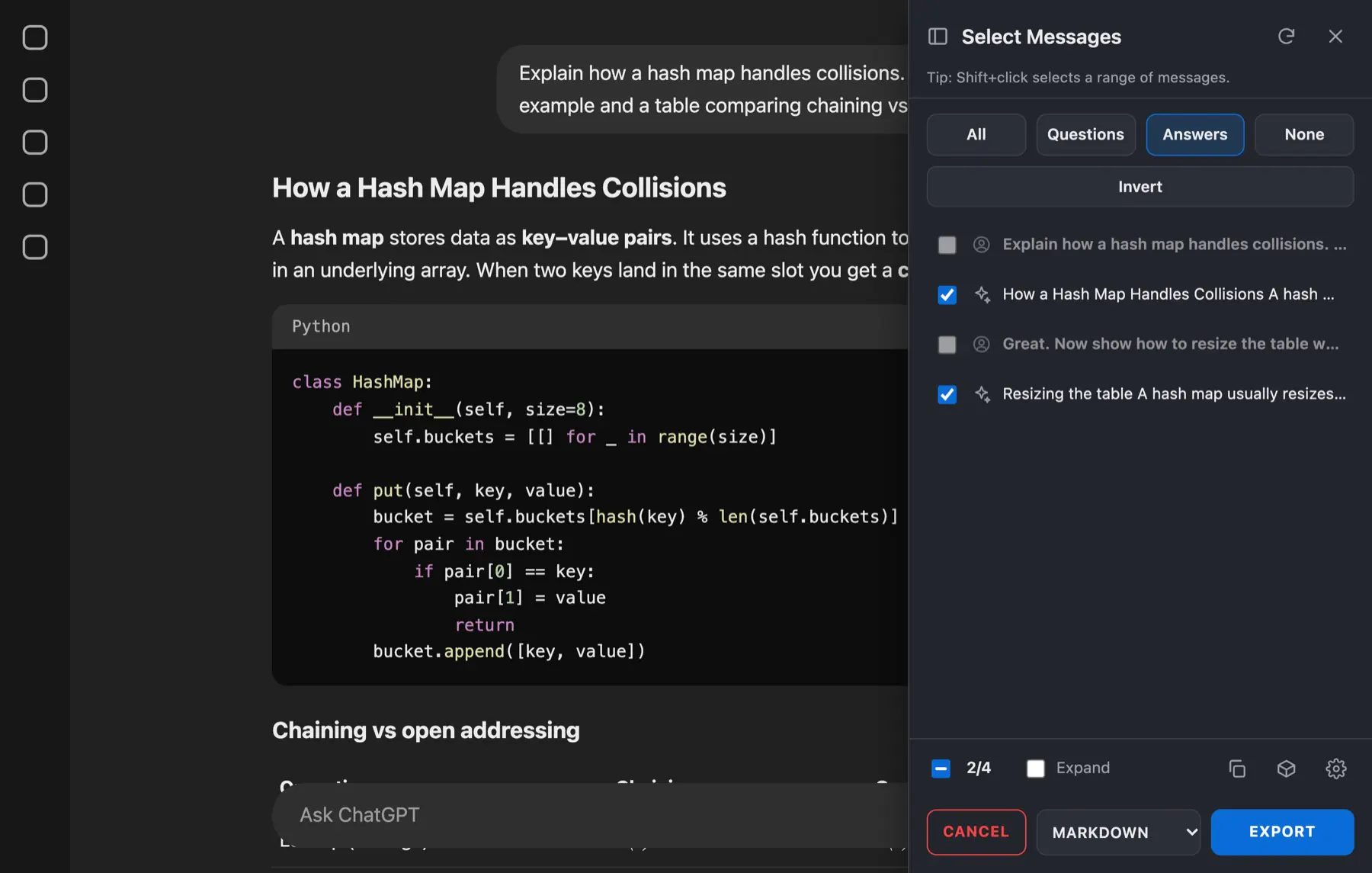
- PDF, Word, Markdown
- HTML, JSON, CSV, PNG
- Or copy as text
- Page size and margins
- Fonts and light or dark
- Page numbers and contents
How it works
How to export a AI conversation
Five quick steps from an open chat to a saved file. It takes about a minute.
Open your conversation
Go to your AI chat site and open the chat you want to save. SELECT and EXPORT buttons appear in the bottom-right corner.
Choose what to export
Export the whole chat as it is, or click SELECT and tick only the messages you need.
Pick a format
Open the arrow beside EXPORT and choose PDF, Word, Markdown, HTML, JSON, CSV or PNG.
Adjust the layout
Optional: set page size, fonts, theme and what to include, such as reasoning or sources.
Press EXPORT
Most formats download straight away. For PDF, choose Save as PDF in the print window.
Formats
Choose your export format
One extension, seven formats. Pick the one that fits where the conversation is going next.
- PDFShare a clean, read-only copy with clients, teachers or teammates.
- WordEdit the chat as a normal document in Word, Pages or Google Docs.
- MarkdownDrop it into Obsidian, Notion or your docs with formatting intact.
- HTMLKeep a single self-contained web page you can open anywhere.
- JSONFeed the conversation into scripts, apps and analysis.
- CSVOpen every message as a row in Excel or Google Sheets.
- PNGPost the chat as an image in a slide, post or ticket.
- And moreCopy as text, rich text, JSON or CSV with one click. Compare all formats.
Features
Flexible exports that keep your content organized
Save the whole chat or only the parts you need, and keep headings, tables, code and formulas just as they were.
Export the full conversation
Save a whole research thread, project log or client discussion in one go, with every message in order. No scrolling, no copying section by section.
Export AI Conversations Export only what you need
Tick individual messages, Shift+click a range, or use presets like Answers only. Leave out the small talk and keep the part worth saving.
Select Only What You Need Make it look the way you want
Choose page size, margins, fonts and theme, and decide whether reasoning, sources and Canvas documents come along. Save your choices once and reuse them.
Customize Layout and Theme Export AI to Word - One-click export
- Headings and lists kept
- Edit it in Word
Keep the conversation structure
Headings, bold text, lists and tables stay organized in every export format, so there is less cleanup after you save the file.
Support for code, math, tables and images
Technical content comes through intact: code blocks keep their language, formulas are typeset in PDF, and tables and images stay readable.
Export AI to PDF - One-click export
- Code, math and tables
- Ready to share
Reviews
Reviews from AI Chat Exporter users
Thanks to you guys. Very easily I can export AI conversation using this AI Chat Exporter Chrome extension. For people like me who use AI for research, planning, or everyday work, saving conversations can be a useful part of our workflow. I really loved this because it lets me save my AI conversation.
Rajan Kumar Singh
Oct 16, 2026
I was searching for this on Google: "how to save AI conversation". I found this, a very handy option to save AI to PDF. This extension helps me export the conversation into PDF format. It has other formats too, but AI to PDF is what I mostly use.
Prabhat Singh
Oct 16, 2026
I really loved this AI Chat Exporter tool for saving AI conversations in different formats. It supports PDF, Word, Markdown, HTML, JSON, CSV, PNG, and text, which makes it versatile for different needs. Having multiple export options in one Chrome extension is convenient. I tried many extensions before but none of them worked really well.
Kapil Yadav
Oct 16, 2026
Every AI chat
One exporter for every AI chat you use
People rarely stay on one assistant. AI Chat Exporter adds the same export menu to ChatGPT, Claude, Gemini and Grok, so a chat from any of them leaves as the same clean PDF, Word or Markdown file.
Works on
 ChatGPTchatgpt.com
 Claudeclaude.ai
 Geminigemini.google.com
 Grokgrok.com
One export menu
The same buttons, shortcuts and layout settings on every site. Learn it once.
Every format
PDF, Word, Markdown, HTML, JSON, CSV and PNG, whichever assistant the chat came from.
Private by design
Chats are converted in your browser and never uploaded to our servers.
Only use one assistant? Its own single-site extension is listed below.
FAQ
Frequently asked questions
Which AI chat sites does AI Chat Exporter support?
ChatGPT, Claude, Gemini and Grok. Each also has its own page: ChatGPT Exporter, Claude Exporter, Gemini Exporter and Grok Exporter.
Should I get AI Chat Exporter or a single-site exporter?
If you use one AI chat, the single-site exporter is enough. If you use two or more, AI Chat Exporter works on all of them from a single extension. It is a separate extension with its own plan, so buying it does not change the single-site exporters. See pricing.
How do I export a AI conversation?
Install the AI Chat Exporter Chrome extension, reload AI, open a chat and press EXPORT in the bottom-right corner. Pick a format from the arrow beside it. See the step-by-step guide.
Is AI Chat Exporter free?
Yes, there is a free plan with a monthly quota (5 full exports and 7 single exports) in every format. The Month ($8), Year ($48) and one-time Lifetime ($79) plans remove the limit. See pricing.
Can I export only some messages?
Yes. Click SELECT, tick the messages you want or Shift+click a range, then export. The Answers preset keeps only AI's replies.
Does it keep code blocks, tables and formulas?
Yes. Headings, lists, tables, code blocks, links and images carry over. Math is typeset in PDF; in Word it is stored as LaTeX text.
Does my conversation get uploaded anywhere?
No. The file is built inside your browser and the extension only talks to your AI chat site. Read the privacy policy for every permission.
Can I export long conversations?
Yes. The extension reads the whole conversation from the page, so long chats export in one file. To save many chats at once, see export all conversations.
What happens when AI changes its website?
The extension is updated when the page layout changes. If a button goes missing after an update, check AI export not working.
More AI chat exporters
One account, every AI chat. Pick the extension for the site you use.

ChatGPT Exporter
chatgpt.com
Save ChatGPT chats as PDF, Word, Markdown and more, locally in your browser.
View extension
Claude Exporter
claude.ai
Save Claude chats as PDF, Word, Markdown and more, locally in your browser.
View extension
Gemini Exporter
gemini.google.com
Save Gemini chats as PDF, Word, Markdown and more, locally in your browser.
View extension
Grok Exporter
grok.com
Save Grok chats as PDF, Word, Markdown and more, locally in your browser.
View extension
Install AI Chat Exporter and save your next conversation
Free to start. Works in Chrome. No account needed, and nothing leaves your browser.